
The navigation bar appears on every page and is located at the top of the site. The navigation bar has useful links and is used as a quick access tool to support navigating around eWānanga.
Here is an example of the Navigation bar:

Links on the navigation bar include:
1. Te Whare Wānanga o Awanuiārangi logo
Quick link to the Home page.
2. Home
Access to student booklets and eWānanga Site News.
3. Dashboard
Recently accessed courses, Course Analytics, To Do List, Recent Feedback and Recent Forums.
4. My courses
Course overview and an index of your courses.
5. Reports & Analytics
Overview Report or Learner Course Progress Report options with data of Time spent on site and Course Progress.
6. Student Portals
Links to these portals: Urutauira, Office 365, Check Email (Outlook wānanga provided email), and Ignite Wellbeing.
7. Search courses (magnifying glass)
Enter course details then press return to execute a related search in the eWānanga LMS.
8. Notifications (bell)
Notification that you have communications pending.
9. Message Drawer (speech bubble)
Notification that you have messages pending. Ability to connect with and message other users.
10. Profile Picture ( v dropdown menu)
Quick links to Profile, Grades, Calendar, Messages, Private files, Reports, Preferences, Language and the Log out option.
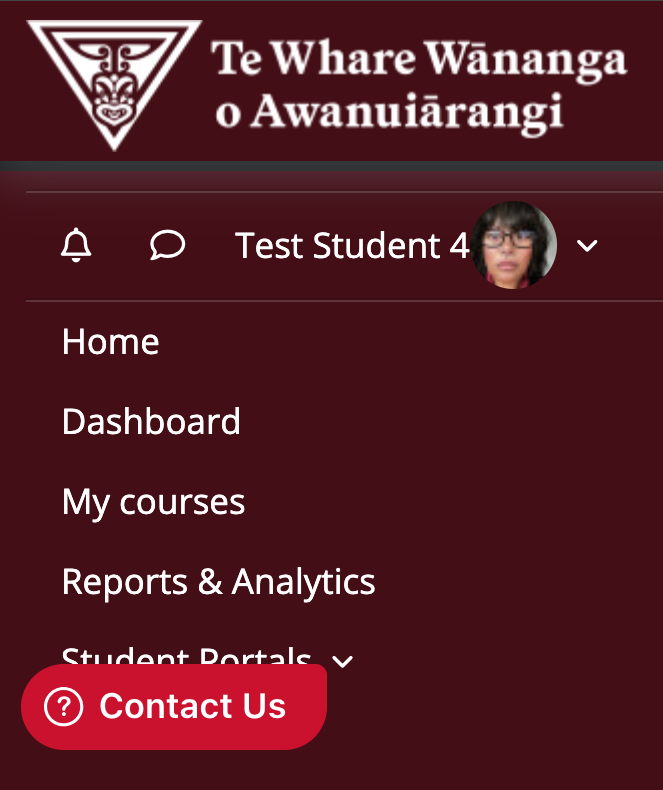
NOTE: Depending on the viewing settings of your device, the navigation bar may be stacked in a Hamburger Drawer or collapsed in a More v dropdown menu.
Hamburger Drawer
You may have three lines on the navigation bar due to the display size of your screen. The links above are collapsed and listed in a dropdown menu.
More v dropdown menu
Depending on the Zoom quantity of your browser you may have a More v option on the navigation bar. The amount of quick links that are collapsed and listed in the dropdown menu is dependent on the rate at which you Zoom and your specific display options.
